How to manage a Minecraft server without the console: SSH, host panels, Pterodactyl and Cloud Panel
Four ways to manage a Minecraft server, from bare SSH to an app with buttons: what each one does, how much setup it takes and where people usually trip up.
You started the server on a VPS, closed the terminal, and the server died with it. That's how almost everyone begins. Below are four ways to keep a server within reach, from the barest to the most comfortable, with honest downsides for each. If the server isn't up yet, start with our guide on creating a Minecraft server.
Option 1. SSH and screen
The server dies when you close the window because the process is tied to your SSH session. Session gone, server gone. The fix is to run it inside screen or tmux, which live independently of your connection.
- Connect:
ssh mc@server_address. - Open a session:
screen -S mc. - Start the server:
java -Xms4G -Xmx4G -jar paper.jar nogui. How much memory to give it is covered in our hosting guide. - Detach without stopping the server:
Ctrl+A, thenD. - Get back to the console:
screen -r mc.
tmux works the same way: tmux new -s mc, detach with Ctrl+B then D, reattach with tmux attach -t mc. For files, use SFTP in WinSCP or FileZilla with the same login as SSH.
Downsides: everything is a command, configs are edited in nano, and after a VPS reboot the server won't come back on its own.
Autostart with systemd
To make the server start after a reboot, run it as a service. Create /etc/systemd/system/minecraft.service:
[Unit]
Description=Minecraft server
After=network.target

[Service]
User=mc
WorkingDirectory=/home/mc/server
ExecStart=/usr/bin/java -Xms4G -Xmx4G -jar paper.jar nogui
Restart=on-failure

[Install]
WantedBy=multi-user.target
Enable and start it: systemctl enable --now minecraft. Stop it: systemctl stop minecraft. A service like this has no console you can type into. For commands you need RCON.
RCON: commands without a console
In server.properties:
enable-rcon=true
rcon.port=25575
rcon.password=a_long_random_password
After a restart you send commands with an RCON client such as mcrcon: mcrcon -H 127.0.0.1 -P 25575 -p password "say Restart in one minute".
Never expose the RCON port to the internet. The password travels in plain text, and RCON can do anything to your server. Connect from the same machine or through an SSH tunnel, and block the port in the firewall.
Option 2. Your host's panel
Almost every game host gives you a web panel: a console in the browser, a file manager, start and stop buttons, often backups and a one-click server jar switch. Many of these panels are built on Pterodactyl or its forks, some are in-house.
There is one big downside. The panel knows about the server process and nothing about your plugins. Menus, holograms, the tab list and permissions are still edited in a text editor, just in a browser tab. And you can't go beyond what your plan allows.
Option 3. Pterodactyl on your own VPS
Pterodactyl is a free, open-source panel. It has two parts: the Panel (a PHP web app where you click buttons) and Wings (a daemon on the machine that runs servers in Docker containers). What you get:
- a browser console, a file manager and SFTP access;
- schedules: nightly restarts, timed commands;
- full server backups;
- access for your team with per-person permissions;
- memory and CPU limits per server when you run several.
The price is the setup: Linux, Docker, a web server, a MySQL or MariaDB database, Redis, ideally a domain with SSL. If you've deployed websites before, that's an evening. A beginner can easily get stuck. Pelican is a fork of the same codebase, and there are simpler options: Crafty Controller, built for Minecraft, and the paid AMP by CubeCoders.
Pterodactyl shines when you run several servers, work with a team that needs roles, or hand out servers to other people. For plugin configs it adds nothing over a host panel.
Side by side
| SSH and screen | Host panel | Pterodactyl | Cloud Panel | |
|---|---|---|---|---|
| What to install | nothing | nothing, the host provides it | panel, Wings, Docker, database | a Windows app, a wizard connects the server |
| Console | yes | in the browser | in the browser | in the app |
| Start and stop | commands | buttons | buttons | buttons |
| Plugin configs | nano | text editor | text editor | visual builders and settings forms |
| Undo an edit | your own backup | backups, if offered | full backups | a log, any single edit |
| Best for | terminal people | starting without a VPS | many servers, teams | owners of their own server |
Common mistakes
- Running the server as root. One vulnerable plugin and the whole machine is exposed. Create a separate user, like
mcabove. - SSH login as root with a password. Switch to keys and disable root password login.
kill -9instead ofstop. The world doesn't get saved and the last minutes of play are lost.- RCON with a short password and an open port. It will be found sooner than you think.
/reloadinstead of a restart. Some plugins misbehave after it until the next proper restart.- Editing configs without a copy. You break a file and have no working version. That's half of all "server won't start" nights.
The faster way
Cloud Panel is a Windows app that connects to your server on a Linux VPS or your own PC. A wizard walks you through the steps and gives you a short code. Paste the code into the panel and the server is in your hands.
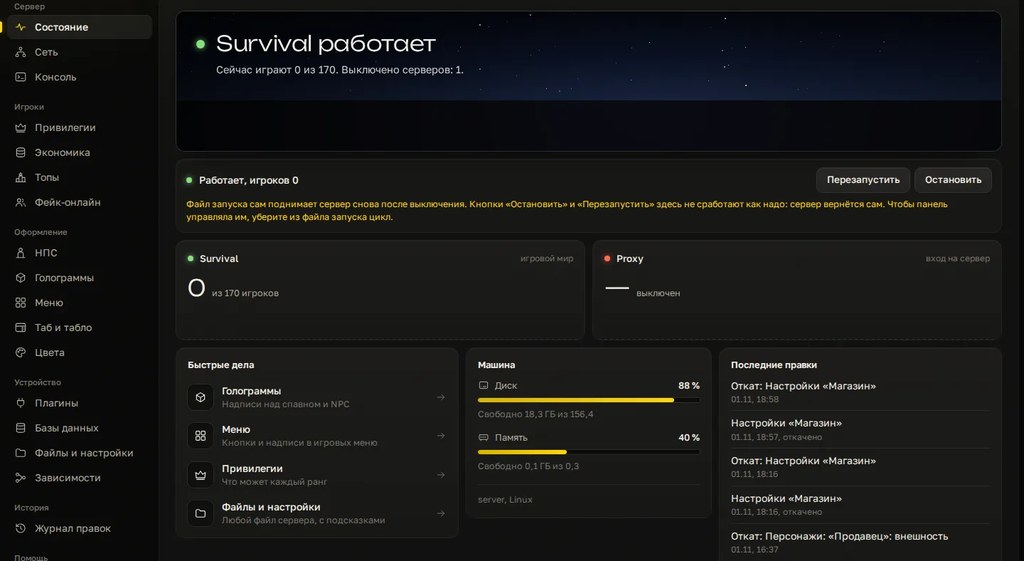
The main screen shows whether the server is running and how many players are online, in real time. Start, stop and restart are buttons. Disk and memory usage are right there. On a network, each server (Lobby, Proxy, Survival) gets its own card. The console and files are in the app too.
The real difference from host panels is everything around plugins. NPCs, holograms, menus, the tab list, the scoreboard and shop prices are edited in visual builders with an in-game preview. Settings of nine popular plugins open as forms instead of raw YAML. Every edit is logged and any of them can be rolled back, restoring the file byte for byte.
What it doesn't do: it doesn't sell servers and doesn't replace hosting. If you hand out servers to clients or run dozens of machines with a team, that's a job for Pterodactyl. One subscription covers one server and up to two computers.
Checklist
- The server runs as a dedicated user, not root.
- SSH uses keys, root password login is disabled.
- The server survives closing the terminal: screen, tmux or a service.
- After a machine reboot the server comes back by itself.
- RCON is either off or closed to the outside with a long password.
- You stop the server only with
stoporsystemctl stop. - There is a copy before you edit configs, and you have restored from it at least once.
Want to see how it looks on your own server? Try it free for 3 days, no card needed.
Do not want to put all of this together by hand?
We have been building server builds, plugins and websites for Minecraft servers since 2022. A ready-made solution goes onto your hosting in an evening, and we install it for free.